Welcome to the BlockyCRAFT tutorial!
This tutorial was created to guide you through all the unique mechanics and systems within the game. Here you will learn how to protect your lands, create groups, place bounties on your enemies, and much more.
Authentication
To ensure the security of your account and items, we utilize a proprietary authentication system synchronized with the BlockyCRAFT website.
Your in-game account and your BlockyCRAFT website account are the same. If the user zukerman created the password 123, the username and password for logging into the website will be exactly the same. If you change your password, it will also be changed automatically on the website.
Main Commands
/register <password>- Registers your account. Use this the first time you join./login <password>- Logs into your account. Required every time you join the server./changepassword <new-password>- Changes your current password.
Important
- You have 3 login attempts before being kicked.
- Your inventory is saved and protected. No one can access your items while you are not logged in.
- Movement, chat, and interactions are blocked until the player is authenticated.
Password Recovery
When you register for the first time, you will receive a recovery code in the game chat. Save this recovery code in a safe place, as it is currently the only method to recover your account.
We do not perform account or password resets, your account is your responsibility!
Recovery Commands
/recover <code>- Recover your account using the recovery code./newpassword <password>- Set a new password after validating the code./generatecode- Generate a new recovery code.
Item Deposit
In a world without keep inventory and with various rival groups, depositing your valuable items is a great strategy. Depositing items also makes it possible to sell them on the Market. Additionally, having significant assets helps your group climb the ranking.
Commands
/deposit all- Deposits all allowable items from your inventory./deposit hand- Deposits only the item currently in your hand./deposit all hand- Deposits all items in your inventory that match the item in your hand./deposit fund- Deposits items directly into your group treasurer's wallet.
To deposit into your group's fund, simply add the parameter fund to any deposit command. For example: /deposit all hand fund or /deposit hand fund, etc.
When depositing, items are transferred from your inventory and can be accessed in your Wallet.
Land Protection (Claims)
Protect your builds and items from other players using our claims system. When you create a claim, it will be displayed on the Map.
Once a claim is created, it cannot be deleted. To get rid of a claim, you must sell it to another player. Claims can be seized for 30% of their value if the claim owner remains inactive for 90 days or more.
Protection Blocks
Before you can make a claim, you will need to acquire protection blocks. The currency used to trade and acquire claims is the gold ingot, and 1 gold ingot = 15 protection blocks, so if you have 10 gold ingots, for example, you can buy 150 blocks for your claim.
In order to purchase protection blocks, have your gold ingots in your inventory and use the command /claim buy <gold-amount>.
How to Create a Protection
After purchasing your protection blocks, it's time to claim your land:
- Hold a stick in your hand.
- Right-click on two blocks to define the corners of your area (diagonally).
- Use
/claim confirm <claim-name>to finish the purchase.
Management
/claim balance- Checks how many protection blocks you still have available./claim list- Lists all your claims./trust <player>- Allows another player to build on your claim./untrust <player>- Removes a player's permission./claim merge <new-name>- Merges overlapping claims into one.
Land Market
/claim sell <price>- Puts the current claim up for sale./claim unsell- Removes the current claim from the market./claim acquire <new-name>- Buys a claim that is for sale./claim occupy <new-name>- Seizes an abandoned claim for a reduced price.
Group integration: If you are part of a group, all members of your group automatically have permission on your claims. It is not necessary to /trust them.
Groups
Join other players, dominate the server, and climb the ranking! Your group can be anything from a nation to a company specialized in the market. If you create or join an existing group, your claims are trusted to all group members as long as you belong to it. Your claims remain individual; joining or leaving a group does not affect ownership.
Join a good group so you can rise together on the Scoreboard!
Basic Commands
/grp create <tag> <name>- Creates a new group./grp invite <player>- Invites someone to your group./grp join <group>- Accepts an invitation./grp leave- Leaves the current group./gc <message>- Sends a message in the group chat.
Management
/grp promote <player> <role>- Promotes or demotes members./grp kick <player>- Removes a player from the group./grp setbase- Sets the group base where members can teleport./grp pvp <on/off>- Enables or disables friendly fire.
Ranking and Base
/grp rank- Views the richest groups on the server based on assets./grp base- Teleports to the group base (30s cooldown if in combat).
Bounties
Want to see someone eliminated? Put a price on their head!
Commands
/bounty <player> <amount>- Places a bounty for the death of a player./bounty list- Views the list of wanted players./bounty remove <player>- Removes a bounty you placed and recovers your iron.
Details
- If you kill a player with a bounty, the reward goes directly to your inventory.
You cannot place bounties on members of your own group, and killing members of your group does not award you the bounty.
Help
Need to remember a command?
/help- Opens the help menu with the list of server commands./help <page>- Navigates through the help pages.
Stock Exchange
The BlockyCRAFT economy revolves around the Stock Exchange. This is where you can multiply your wealth by trading items (commodities) in real-time with other players. The base currency for all major trades is the Iron Ingot (IRON).
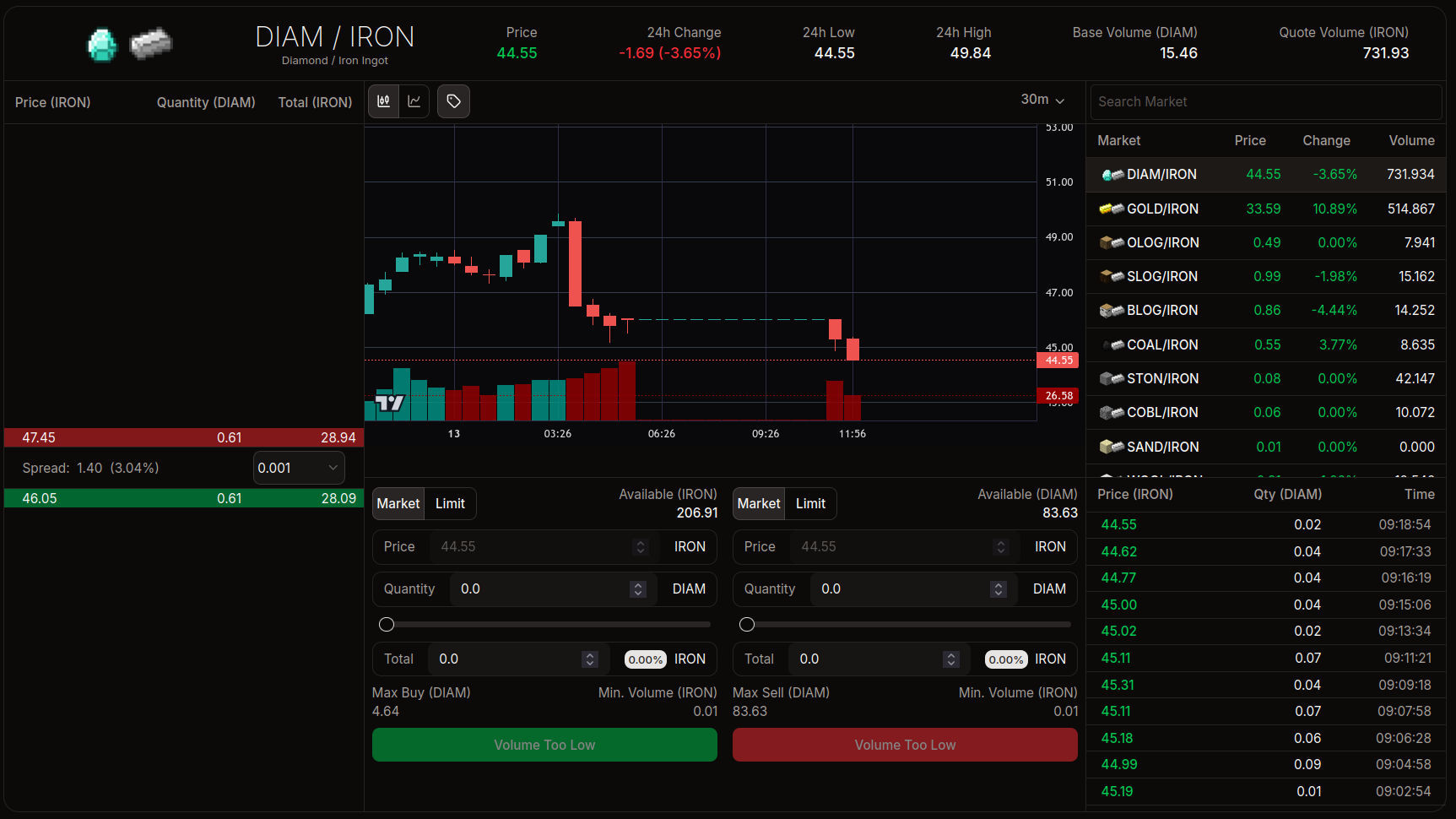
Interface Overview
The interface is divided into panels that provide vital information for your trades:
- Trading Pair (Top): Shows which item is being traded (e.g.,
DIAM/IRONmeans Diamonds for Iron). - Price Chart (Center): A candlestick chart showing the appreciation or depreciation of the item over time.
- Order Book (Left): List of all open buy and sell orders.
- Order Panel (Below the chart): Where you execute your buy or sell operations.
- Market List (Right): Other items available for trading (Gold, Coal, Cobblestone, etc.).
- Market History (Lower Right): Shows the entire history of that market.
Order Book
The "Order Book" is the heart of the market. It shows the players' intentions.
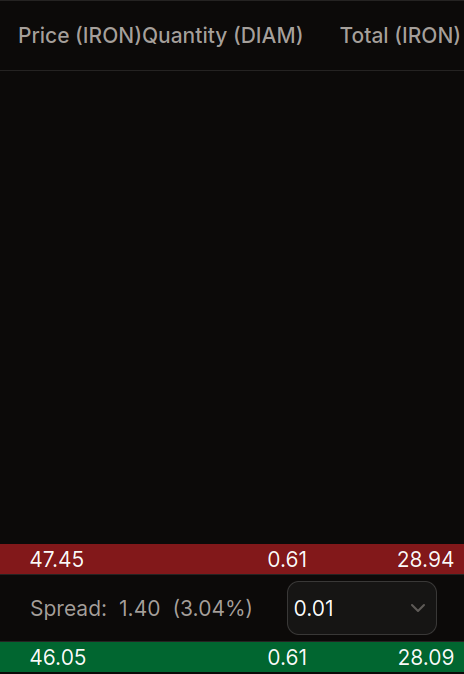
- Red (Upper part): Sell orders. Players wanting to sell the item and asking a price for it.
- Green (Lower part): Buy orders. Players wanting to buy the item and offering a price.
- Spread: The difference between the cheapest sell price and the highest buy price.
In the example image, there are two buy orders and two sell orders, with a 2.88% price difference (spread).
How to Buy and Sell
In the lower center panel, you will find the trading forms.
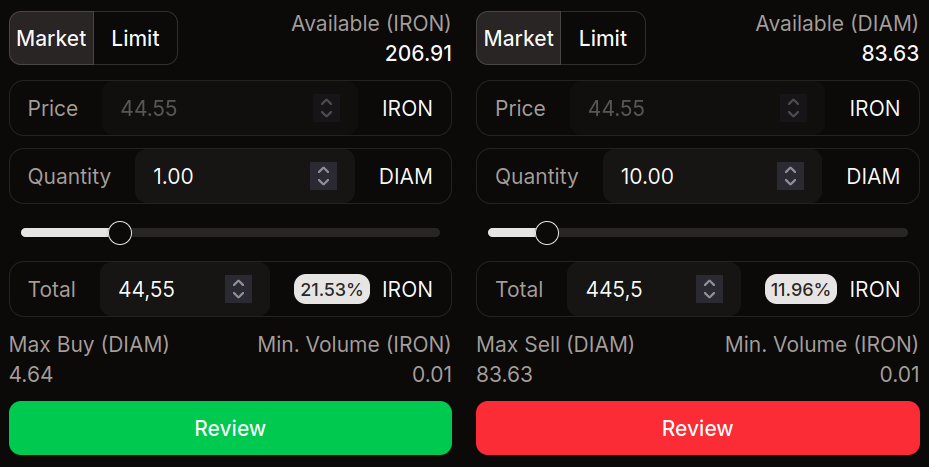
Order Types
You can trade in two ways by selecting the Market or Limit tabs:
- Market: Buys or sells immediately at the best available price in the order book. It's fast, but you don't choose the exact price.
- Limit: You set the Price you want to pay or receive. Your order will remain in the order book waiting for someone to accept it.
Filling the Order
- Price: How much each unit costs (Limit orders only).
- Quantity: How many items you want to trade (e.g., how many Diamonds).
- Total: The total value of the transaction in Iron Ingots.
Use the slider below the fields to automatically fill a percentage of your available balance (e.g., use 50% of your Iron to buy Diamonds).
History and Other Markets
On the right side, you can monitor what is happening in real-time.
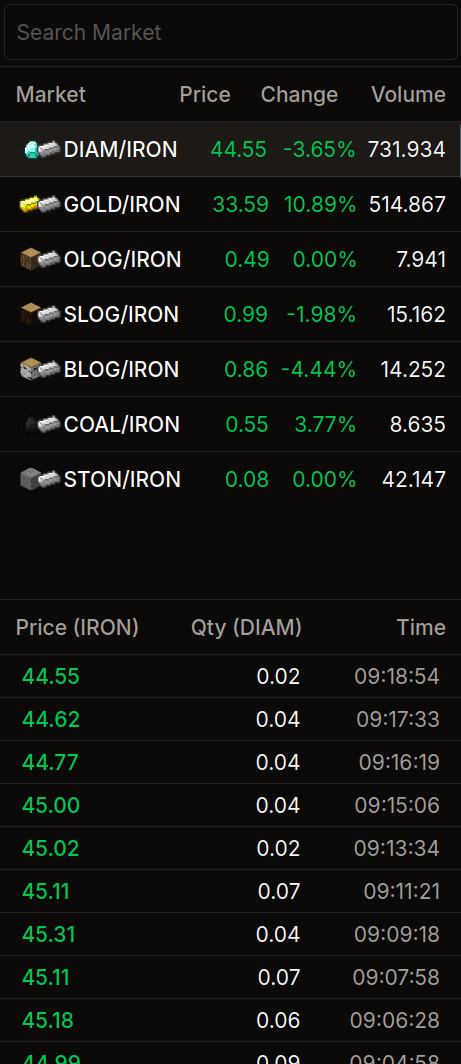
- Instrument List: Click on a pair (e.g.,
GOLD/IRON) to switch markets and view that item's chart. - Trade History: Shows the latest successfully executed transactions, allowing you to see what the item is actually trading for.
BMM (Blocky Market Maker)
For advanced players who wish to provide liquidity to the market and profit from the spread, we offer the BMM. This is an open-source bot, developed in Python, that automates your trades on the BlockyCRAFT Stock Exchange.
The bot operates with Market Making strategies, placing buy and sell orders simultaneously to capture the price difference (spread), ensuring liquidity for the server and profit for the operator.
Risk Warning: Using bots involves financial risks. An incorrect configuration can quickly drain your IRON balance or items. Test with low values before operating heavily. Do not use the bot's default settings and modify at your own risk.
Features
- Automated Market Making: Maintains active buy and sell orders.
- Auto-Hedge and Rebalancing: Automatically adjusts prices based on the market.
- WebSocket Integration: Reacts to trades in real-time (low latency).
- Local Web Dashboard: Visual interface to track your profits and status.
- Circuit Breaker: Automatically pauses trading if volatility is extreme or if the API fails.